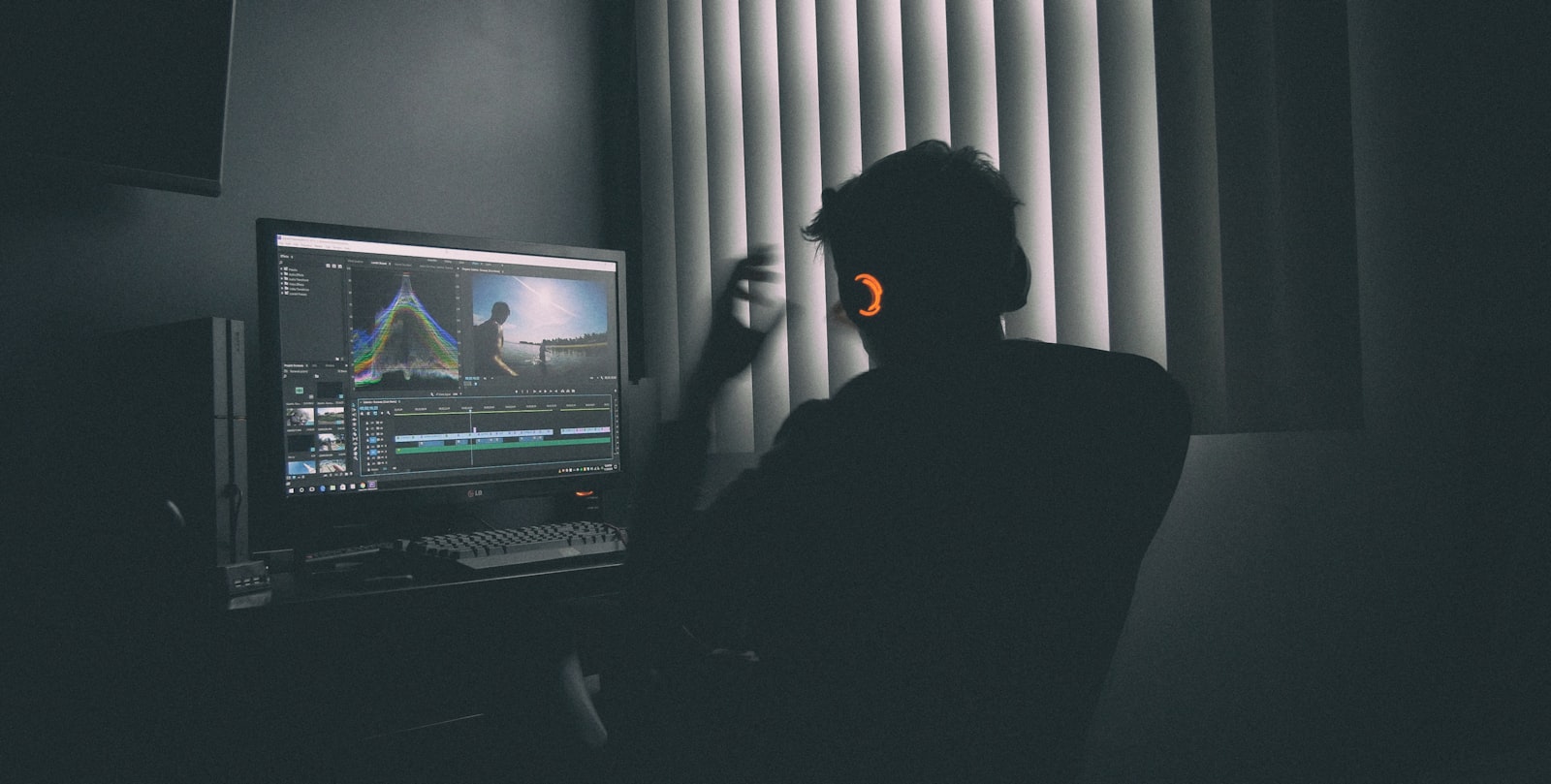
Choosing a video editor is one of the most consequential decisions a YouTube creator makes. It determines your editing speed, your visual style, and how many hours per week you spend in post-production. We took six popular editors, used each one to edit the same three YouTube videos (a 12-minute tutorial, a 6-minute vlog, and a 20-minute review), and measured everything: render times, timeline responsiveness, export file sizes, and the real-world time from raw footage to finished upload. Here is what we found.
| Editor | Price | Platform | Best For |
|---|---|---|---|
| Movavi Video Editor | Free trial / $19.95/mo | Win, Mac | One-click AI tools for beginners |
| DaVinci Resolve | Free / $295 one-time | Win, Mac, Linux | Best overall value |
| Adobe Premiere Pro | $22.99/mo | Win, Mac | Professional workflows |
| Final Cut Pro | $299.99 one-time | Mac only | Fastest rendering on Apple Silicon |
| CapCut Desktop | Free / $19.99/mo | Win, Mac | Quick edits and auto-captions |
| Filmora | $49.99/yr | Win, Mac | Beginners who want templates |
| Descript | Free / $24/mo | Win, Mac | Talking-head and podcast content |
Movavi Video Editor keeps things simple on purpose. Every step is drag-and-drop and most tools run in a single click, which makes it a fair pick for a family recap or a first product demo when you do not want to learn a timeline. It runs on Windows 10 and 11 and macOS 12.0 or later.
The AI tools are a strong reason to choose it. Auto subtitles transcribe speech in 100+ languages, including the word-by-word look short-form clips use. Auto-tracked crop turns horizontal footage vertical and follows the speaker as they move. Cleanup tools round it out: denoise for grainy low-light shots and noise removal for wind and hum. There is also an automatic silence removal that pulls dead air from a track. Hundreds of transitions, titles and filters come built in, with a Movavi Effects subscription adding 10,000+ more.
Movavi is honest about its ceiling. The free version caps exports at 60 seconds and adds a watermark, so it suits testing the app rather than publishing from it. Movavi lists $19.95/month or $69.95/year to remove those limits. There is also no node-based grading, no multi-cam, and no deep audio mixing, and colour is limited to presets and manual sliders. If your videos need any of that, look elsewhere. For everyday cuts, captions and quick fixes, it gets you to an upload fast.
We clocked Movavi at 3 minutes 10 seconds on the same 12-minute 1080p project we ran through every other editor here, which puts it among the fastest in the group and the quickest of the beginner-focused tools.
DaVinci Resolve has no business being free. The free version includes a full multi-track timeline, professional color grading tools used in Hollywood films, Fairlight audio editing, and exports up to 4K with no watermarks. Blackmagic makes its money from the $295 Studio version (which adds GPU-accelerated effects, HDR grading, and collaboration tools), but the free tier covers everything a YouTube creator needs for the first 2-3 years of their channel.
In our testing, Resolve handled a 45-minute 4K timeline without crashing on a system with 32GB RAM and an RTX 4060. The magnetic timeline takes some getting used to if you are coming from Premiere Pro, but after about a week, most editors find it faster for rough cuts. Color grading is where Resolve truly separates itself: the color page offers node-based grading that would cost hundreds of dollars as a plugin in any other editor.
The downsides are real, though. DaVinci Resolve has the steepest learning curve of any editor on this list. The interface is dense, and new users will spend their first 5-10 hours just learning where things are. The free version also lacks some GPU acceleration, which means effects-heavy timelines can stutter on mid-range hardware. If you have less than 16GB of RAM, expect slowdowns on projects longer than 15 minutes.
Our render test: a 12-minute 1080p tutorial with basic cuts, text overlays, and color correction exported in 4 minutes 22 seconds on our test machine (Ryzen 7 5800X, 32GB RAM, RTX 4060). That is competitive with Premiere Pro and significantly faster than Filmora.
Download DaVinci Resolve (free) →
Premiere Pro is what most professional YouTube teams use, and for good reason. The 2026 version includes AI-powered scene detection, auto-transcription in 18 languages, and the deepest integration with After Effects and Adobe Stock of any editor. If you need motion graphics templates, multi-cam editing, or team collaboration through Productions, Premiere Pro handles all of it.
The subscription model is the biggest pain point. At $22.99/mo (or $263.88/yr), you are paying indefinitely for access. Over three years, that is nearly $800, more than double what Final Cut Pro costs as a one-time purchase. For full-time creators earning $2,000+ per month from YouTube, this is a reasonable business expense. For hobbyists and part-time creators, it is hard to recommend over DaVinci Resolve.
Performance has improved significantly in 2026. The new hardware-accelerated playback engine reduces preview lag by roughly 30% compared to 2024. Timeline scrubbing feels smooth at 1080p even on systems with 16GB RAM. At 4K with effects, you still need a dedicated GPU with at least 6GB VRAM for comfortable editing. If you are already using other Adobe apps for thumbnails and graphics, see our Best YouTube Tools in 2026 roundup for how the full Adobe stack fits into a creator workflow.
Our render test: the same 12-minute tutorial exported in 3 minutes 48 seconds, the fastest of any editor we tested. Premiere Pro's Media Encoder is still best-in-class for export optimization.
Start a Premiere Pro free trial →
If you own a Mac with an M-series chip, Final Cut Pro is the fastest video editor available. Apple optimizes Final Cut specifically for its own hardware, and the results are dramatic. On an M3 MacBook Pro, our 12-minute test project exported in 2 minutes 51 seconds, a full minute faster than Premiere Pro on comparable hardware. Timeline playback at 4K is buttery smooth with zero proxies needed.
Final Cut Pro uses a magnetic timeline that automatically closes gaps when you delete clips. This is either a feature or an annoyance depending on your editing style. Creators who do a lot of insert editing and rearranging find it faster than traditional track-based timelines. Creators who come from Premiere Pro often find it disorienting for the first few weeks.
The $299.99 one-time price is excellent value compared to Premiere Pro's subscription. The obvious limitation: Mac only. If you work across both Windows and Mac machines, or if you collaborate with editors on Windows, Final Cut Pro is not an option. The project files are not compatible with any other editor without conversion.
View Final Cut Pro (90-day free trial) →
CapCut started as a mobile editor but the desktop version has matured into a surprisingly capable tool for YouTube creators. Its standout feature is speed: auto-captions with 94% accuracy in English, one-click background removal, built-in text animation templates, and direct export to YouTube. For creators making talking-head content, reaction videos, or short-form clips, CapCut can cut editing time by 40-60% compared to a traditional editor.
The free version is genuinely usable. You get multi-track editing, keyframe animation, chroma key, and exports up to 4K. The Pro plan, which nearly doubled to $19.99/mo in 2025, unlocks cloud storage, premium templates, and removes the small CapCut watermark from some effect overlays. At its old sub-$10 price CapCut Pro was the clear value standout; at $19.99/mo it now sits just under Premiere Pro's $22.99, so if you want a paid editor at that price weigh it against Premiere, and if value is the priority, DaVinci Resolve's free tier is hard to beat.
US availability (2026): CapCut was briefly pulled from US app stores in January 2025 under the foreign-adversary app law, then restored within days. The TikTok/ByteDance US ownership deal closed on January 22, 2026 and explicitly covers CapCut, bringing it into compliance, so as of mid-2026 CapCut is fully available in the US with no confirmed ban date. If data-residency or platform-risk matters to your workflow, DaVinci Resolve or Premiere Pro are the lower-risk picks.
Where CapCut falls short: color grading is basic (limited to LUT application and simple curves), there is no multi-cam support, and the audio editing tools are minimal compared to Resolve or Premiere. If your content requires precision color work or complex audio mixing, CapCut is not the right tool. But for the 70% of YouTube creators who mostly do cuts, captions, and simple graphics, it handles the job faster than anything else we tested.
Filmora is designed for people who have never opened a video editor before. The interface is clean and uncluttered, with drag-and-drop effects, a library of 500+ templates, and tooltips that explain every feature. You can go from zero experience to a finished YouTube video in under two hours, which is not something we can say about DaVinci Resolve or Premiere Pro.
At $49.99/year, the pricing sits between free and professional tiers. You get 4K export, screen recording, basic motion tracking, and AI-powered features like auto-reframe for Shorts. The template library is genuinely useful for intros, lower thirds, and transitions.
The trade-off is a ceiling. Filmora's simplicity becomes a limitation once you need advanced color grading, complex keyframing, or multi-cam editing. Most creators who start with Filmora outgrow it within 6-12 months and migrate to Resolve or Premiere. Think of it as training wheels: effective for learning, but you will eventually upgrade. Our render test clocked 6 minutes 14 seconds for the same 12-minute project, the slowest of any editor we tested.
Descript takes a fundamentally different approach to video editing. Instead of a traditional timeline, you edit the transcript. Delete a sentence from the text, and Descript removes that segment from the video. Say "um" or "uh" too much? One click removes every filler word from a 30-minute recording. For talking-head creators, interview channels, and podcast-to-YouTube workflows, this is transformative.
The AI features in Descript are best-in-class for this category. Eye Contact correction adjusts your gaze to look directly at the camera even when you were reading notes off-screen. Studio Sound removes background noise and room echo, bringing laptop-mic audio up to near-podcast quality. The overdub feature lets you type new words and generate them in a clone of your voice, though the quality is not yet good enough for anything beyond fixing small mistakes.
At $24/mo for the Pro plan, Descript is not cheap. And it is genuinely not suitable for visually complex content. If your videos involve B-roll, transitions, color grading, or motion graphics, you need a traditional editor alongside Descript or instead of it. But for the creator who films one camera angle, talks for 20 minutes, and needs a polished final product, Descript cuts post-production time by 50-70% compared to any traditional editor. For more on how AI tools are reshaping creator workflows across different categories, Nesyona covers the broader AI tools landscape in their creator-focused roundup.
| Editor | Render Time (12min 1080p) | Min RAM | GPU Required? |
|---|---|---|---|
| DaVinci Resolve | 4m 22s | 16GB | Recommended |
| Premiere Pro | 3m 48s | 16GB | Recommended |
| Final Cut Pro (M3) | 2m 51s | 8GB | Integrated (Apple Silicon) |
| CapCut Desktop | 5m 03s | 8GB | No |
| Filmora | 6m 14s | 8GB | No |
| Descript | 5m 41s | 8GB | No |
| Movavi Video Editor | 3m 10s | 4GB | No |
The right choice depends on your content type, budget, and how much time you want to invest in learning. Here is our recommendation for each scenario:
No matter which editor you choose, the real growth lever for your channel is optimization after you upload. Pair your editor with the right SEO and analytics tools to make sure great videos actually get seen. Our TubeBuddy review and vidIQ review cover the post-production side of the equation.
One email, every week. New reviews, deals, and the one insight worth reading.
DaVinci Resolve is the best free video editor for YouTube in 2026. The free version includes professional-grade color correction, multi-track editing, Fairlight audio tools, and exports without watermarks. CapCut Desktop is a strong second choice if you want faster editing with built-in auto-captions, though it adds a small watermark on some exports in the free tier.
For full-time creators earning revenue from their channels, yes. Premiere Pro at $22.99/mo offers the deepest integration with After Effects, the largest plugin ecosystem, and the most reliable multi-format timeline support. For hobbyists or creators under 10K subscribers, the cost is hard to justify when DaVinci Resolve offers comparable editing power for free.
Yes, but your software choice matters. CapCut Desktop and Filmora run smoothly on laptops with 8GB RAM and integrated graphics. DaVinci Resolve needs at least 16GB RAM for comfortable 1080p editing. Premiere Pro and Final Cut Pro demand more powerful hardware, especially for 4K timelines. If your laptop is older, start with CapCut or Filmora.
Adobe Premiere Pro and Final Cut Pro dominate among creators with 100K+ subscribers. MrBeast's team uses Premiere Pro. Many Mac-based creators use Final Cut Pro for its speed. A growing number of solo creators in the 50K-500K range are switching to DaVinci Resolve to avoid subscription costs.
Descript is excellent for podcast-style and talking-head YouTube videos where you want to edit by editing the transcript. It removes filler words automatically, handles cuts cleanly, and exports at full quality. It is not a good fit for heavily visual content like travel vlogs, music videos, or anything requiring complex motion graphics or color grading.
What a creator may publish, monetise or reuse is governed by published rules rather than by any platform's help centre summary, and the sources below are the primary ones. They are linked so a reader can check a claim here directly.
This page describes tools and the rules that apply to using them. Platform terms change often, and a creator's own agreements decide what applies to them.